This plugin is not built by Mineseed, so we cannot fix bugs directly. We recommend you **/draw save** PRIOR to starting to draw to avoid a bug that seems to prevent users from saving their art!
Change your drawing tools, colors, and other options by doing **/draw** while in drawing mode. Hold **right click** to paint on the canvas. Use your **W A S D** to move the cursor around. Change the colors, your painting tools, and more in the **/draw** menu (while you are in drawing mode). Press **Q** to undo your last action. Save your painting by doing **/draw save**. Cancel your work by doing **/draw cancel**. In the main **/draw** menu, click the **ender chest** to access your saved paintings. This will allow you to **edit** or get a copy of your art. To put the artwork in your inventory, click on the painting in drafts, click **edit** to enter drawing mode, and use the command **/draw save inv**.**Once you delete a painting from the drafts menu, you will not be able to edit it or get a new copy of it anymore.** You can only edit paintings that are stored in the DRAFTS menu!
### Notes/Warnings Each canvas measures 128 x 128 pixels. If you are flying, floating in air, or standing on an incomplete block (like stairs, slabs, carpet, snow, etc.) you will not be able to create a new canvas. Give yourself an open space to ensure you have enough room! If you have more than 28 paintings, make sure you save an extra copy or two so you can make additional copies if you need/want them in the future. You will not be able to edit your paintings once they are removed from drafts! ### More Details! The main **/draw** menu looks like this. The **painting** will create a new piece of artwork. 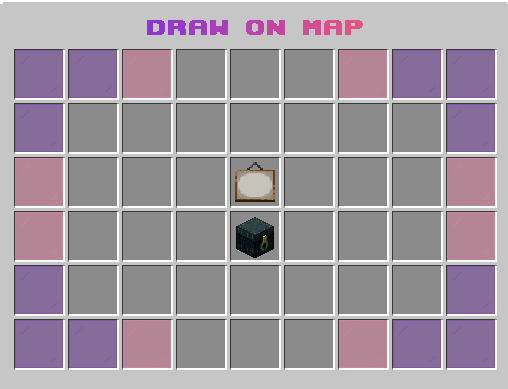 The **ender chest** will allow you to access your drafts. You can store up to 28 paintings in your drafts. To edit or delete one of your paintings, click on the painting from the ender chest menu. 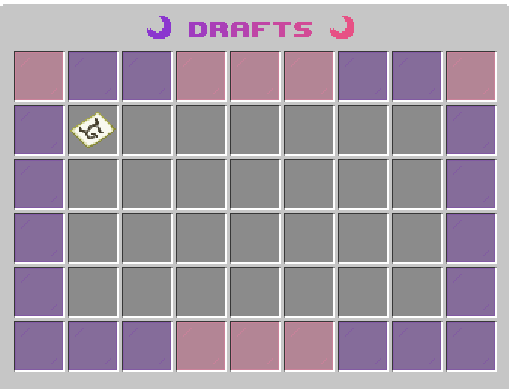 Once you click on a painting, you will see this menu. The **crafting table** opens the art to start your painting. The piece of **paper** immediately clears the painting to let you start over. The :no\_entry\_sign: will completely delete your painting. To put the artwork in your inventory, click on the painting in drafts, click **edit** to enter drawing mode, and use the command **/draw save inv**. 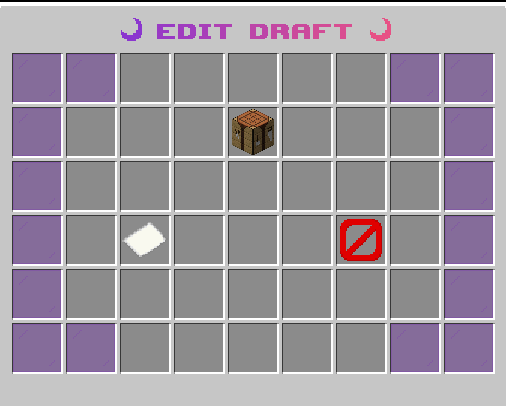 When you are in drawing mode, your screen will look like you are holding a map. From this mode, if you do **/draw** again, you will open the customization menu.\\ 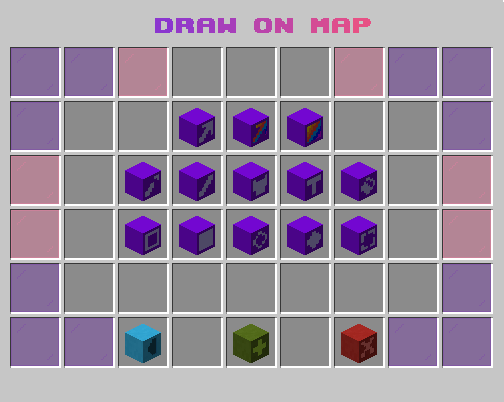| Icon | What it does |
|---|---|
|  | **top row, left** Changes the size of your tool by pixel. (the default is 1 pixel) |
|  | **top row, middle** Changes the color. Hover over the blocks to see the different shades available. Use the arrow keys to go to different base colors. This provides different shades of blue, lime, cyan, yellow, red, pink, purple, brown, white, and gray. |
|  | **top row, right** Changes the background color. Hover over the blocks to see the different shades available. Use the arrow keys to go to different base colors. This provides different shades of blue, lime, cyan, yellow, red, pink, purple, brown, white, and gray. |
|  | **second row, far left (first icon)** Pencil tool. Use this the same way you'd paint (hold right click while using WASD) |
|  | **second row, middle left (second)** line tool. Use this the same way you'd paint (hold right click while using WASD) |
|  | **second row, middle (third)** Fill tool. Use this the same way you'd paint (hold right click while using WASD) |
|  | **second row, middle right (fourth)** Text tool. Use this the same way you'd paint (hold right click while using WASD) |
|  | **second row, far right (last/fifth)** Transparency tool. This tool allows you to make areas of your canvas transparent. Use this the same way you'd paint (hold right click while using WASD) |
|  | **third row, far left (first)** Square tool. Use this the same way you'd paint (hold right click while using WASD) |
|  | **third row, middle left (second)** Filled square tool. Use this the same way you'd paint (hold right click while using WASD) |
|  | **third row, middle (third)** Circle tool. Use this the same way you'd paint (hold right click while using WASD) |
|  | **third row, middle right (fourth)** Filled circle tool. Use this the same way you'd paint (hold right click while using WASD) |
|  | **third row, far right (last/fifth)** Selection tool. Use this tool to copy and paste sections to different parts of your canvas. To select an area, hold the right mouse button down and move your cursor using WASD. Release the right mouse button to set your area. Move your tool to where you'd like to place it, and click the right mouse button to paste. |
|  | **bottom row, left** Undo (does the same thing as the Q key) |
|  | **bottom row, center** Save (does the same thing as **/draw save**) |
|  | **bottom row, right** Cancel (does the same thing as **/draw cancel**) |