# ❓ FAQ

# ❓ FAQ

*Some of the server's most frequently asked questions!*

Got a question that you want to add? Contact an admin or add it to Suggestions in our discord!

**How Do I...**

[Turn on or turn off \[in-game things\]?](https://wiki.mineseed.org/books/mineseed-wiki/page/turn-on-or-turn-off)

[Equip things?](https://wiki.mineseed.org/books/mineseed-wiki/page/equip-things)

[Keep my villagers from dying?](https://wiki.mineseed.org/books/mineseed-wiki/page/keep-my-villagers-from-dying)

[Get a free rank or Join a guild?](https://wiki.mineseed.org/books/mineseed-wiki/page/get-a-free-rankjoin-a-guild)

[Use and access my player vaults?](https://wiki.mineseed.org/books/mineseed-wiki/page/use-and-access-my-player-vaults)

[Make a warp?](https://wiki.mineseed.org/books/mineseed-wiki/page/make-a-warp)

[Create a sign shop?](https://wiki.mineseed.org/books/mineseed-wiki/page/create-a-sign-shop)

[Teleport around?](https://wiki.mineseed.org/books/mineseed-wiki/page/teleport-around)

[Claim land?](https://wiki.mineseed.org/books/mineseed-wiki/page/claim-land)

[Get a claim near mine moved?](https://wiki.mineseed.org/books/mineseed-wiki/page/get-a-claim-near-mine-moved)

[Get back to my claim?](https://wiki.mineseed.org/books/mineseed-wiki/page/get-back-to-my-claim)

[Get more claim blocks?](https://wiki.mineseed.org/books/mineseed-wiki/page/get-more-claim-blocks)

[Buy custom heads?](https://wiki.mineseed.org/books/mineseed-wiki/page/buy-custom-heads)

[Use a chunk hopper?](https://wiki.mineseed.org/books/mineseed-wiki/page/chunk-hoppers)

[Edit armor stands?](https://wiki.mineseed.org/books/mineseed-wiki/page/edit-armor-stands)

[Use an item renamer?](https://wiki.mineseed.org/books/mineseed-wiki/page/use-an-item-renamer)

[Add color to signs?](https://wiki.mineseed.org/books/mineseed-wiki/page/add-color-to-signs)

# Turn on or turn off...

<table id="bkmrk-effect-command-read-"><thead><tr><th>Effect</th><th>Command</th></tr></thead><tbody><tr><td>Read the rules</td><td>/rules</td></tr><tr><td>PVP (turning it on and off)</td><td>/pvp or /pvp toggle  
To PVP, both players must have PVP turned on</td></tr><tr><td>Keep inventory (turning it on and off)</td><td>/keepinv or /keepinventory</td></tr><tr><td>Go AFK</td><td>/afk</td></tr><tr><td>Show my inventory</td><td>\[inv\]</td></tr><tr><td>Show an item</td><td>\[i\]</td></tr><tr><td>Unequip a gradient color</td><td>/nick unequip</td></tr><tr><td>Show or hide [the scoreboard](https://wiki.mineseed.org/books/mineseed-wiki/page/the-scoreboard)</td><td>/toggle 1</td></tr><tr><td>Sign Shop notifications</td><td>/cstoggle</td></tr><tr><td>Tool particles</td><td>/toggleparticles</td></tr><tr><td>Item frame glow and visibility (only for Dragon rank)</td><td>/itf toggle glow  
/itf toggle visiblity  
/itf togglemode glow (or visibility)  
right click on the item frame you want to change</td></tr><tr><td>Toggle pricing on items</td><td>/price toggle</td></tr></tbody></table>

# Equip things?

*join messages, name gradients, name color, chat colors, glows, tags, pins, wings... and more?*

### Use these commands to equip things:

<table id="bkmrk-command-details-%2Fjoi"><thead><tr><th>Command</th><th>Details</th></tr></thead><tbody><tr><td>/**joinmessage**</td><td>Opens the join message gui window from which you can pick the message you want to equip (as long as it's unlocked)</td></tr><tr><td>**/gradients**</td><td>Opens the nickname window: use the right side book to change your name gradient</td></tr><tr><td>//**nickname** *or* /**nickcolor**</td><td>Opens the nickname window: this will let you change the gradient and your nickname if you are a warlock rank or higher.</td></tr><tr><td>/**prefix** #hexcolor:#hexcolor</td><td>Dragon ranks can set the prefix color of \[ᴅʀᴀɢᴏɴ\] by using this command with the hex colors behind it. You can add up to 6 colors.</td></tr><tr><td>/**chatcolor**</td><td>Opens the chat color window: find the color you want to use to equip it</td></tr><tr><td>/**eglow**</td><td>Opens the glow window to select the color you want</td></tr><tr><td>**/pins**</td><td>Opens the window to select a little graphic that appears next to your name in chat and the tab screen (/pins unequip)</td></tr><tr><td>/**wings** *or* /**backbling**</td><td>Hold the wings in your hand and then do the command. Press F5 to change the view and see them on!</td></tr><tr><td>**/hat**</td><td>hats or putting items on your head</td></tr></tbody></table>

### Join Message

A join message announces you when you first log in.

Use /**joinmessage** to open the window. Click on the left block or right block to select the join message category (and join message) you want to equip. Make sure it's unlocked! Additional pages of messages can be accessed by clicking on the white arrow.

To remove a join message, click the white \[ **−** \] button at the bottom of the main /joinmessage screen.

![](https://wiki.mineseed.org/uploads/images/gallery/2026-11/image-11.png)

### Name Gradients and Colors

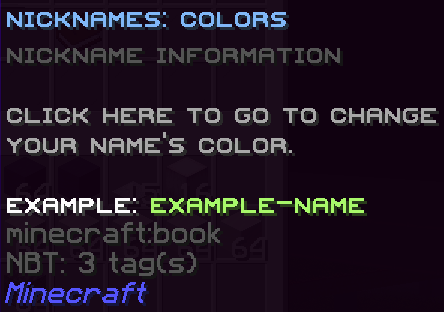
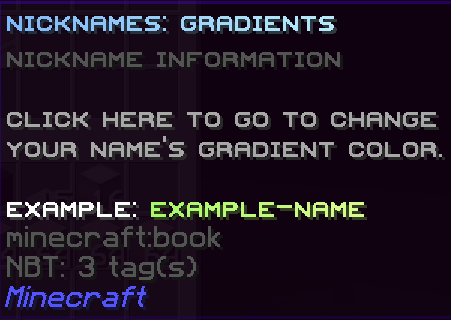
Change your name color in chat by doing /**nick** or /**nickname** or /**nickgradient** or /**gradient**.

<table id="bkmrk--1"><thead><tr><th></th><th></th></tr></thead><tbody><tr><td>![](https://wiki.mineseed.org/uploads/images/gallery/2026-11/image-117.png)</td><td>![](https://wiki.mineseed.org/uploads/images/gallery/2026-11/image-118.png)</td></tr></tbody></table>

If you are a [Dragon rank](https://wiki.mineseed.org/books/mineseed-wiki/page/premium-ranks), you can also customize your prefix title \[ᴅʀᴀɢᴏɴ\] as well. Do this by using /prefix #hexcode:#hexcode:#hexcode:#hexcode:#hexcode:#hexcode (up to six colors). Select your hex codes from any hex code color picker, like [Birdflop RGB](https://www.birdflop.com/resources/rgb/).

### Chat Colors

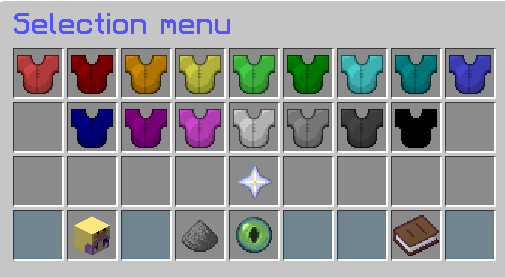
In the Mineseed chat, you can customize your chat color once you unlock from many choices! Type the command **/chatcolor** to open the menu. Pick from a variety, or create your own in the [Mineseed store](https://store.mineseed.org). Other colors can be won through crates (including the daily rewards crate).

![](https://wiki.mineseed.org/uploads/images/gallery/2026-11/image-297.png)

### Glows

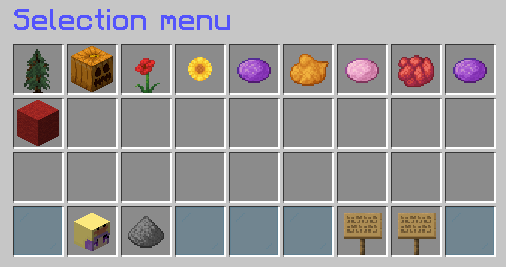
Glows make your avatar have a color around your skin. They are equipped from **/eglow**. Select solid colors from the main menu, or click the enchanted book and select special glows. You can make glows blink or stay solid.

<table id="bkmrk--3"><thead><tr><th></th><th></th></tr></thead><tbody><tr><td>![](https://wiki.mineseed.org/uploads/images/gallery/2026-11/image-112.png)</td><td>![](https://wiki.mineseed.org/uploads/images/gallery/2026-11/image-115.png)</td></tr></tbody></table>

### Tags

Tags appear after your username. In this example, estherium's tag is \[ᴅᴜᴄᴋʟɪɴɢ\]. You can equip unlocked tags by doing **/tags**. You can win custom tags by winning build competitions. Other tags can be won through crates, the [soul shop](https://wiki.mineseed.org/books/mineseed-wiki/page/souls-the-soul-shop), the [token shop](https://wiki.mineseed.org/books/mineseed-wiki/page/events-the-token-shop), and more.

![](https://wiki.mineseed.org/uploads/images/gallery/2026-11/image-109.png)

### Pins

Pins are small icons that can appear after your username in chat and in the tab screen (for java users). You can equip a pin by doing /pins and selecting an unlocked one in the menu. You can win custom pins by winning build competitions, or purchasing them from the [Mineseed store](https://store.mineseed.org). Other pins can be won through crates, the [soul shop](https://wiki.mineseed.org/books/mineseed-wiki/page/souls-the-soul-shop), the [token shop](https://wiki.mineseed.org/books/mineseed-wiki/page/events-the-token-shop), and more.

![](https://wiki.mineseed.org/uploads/images/gallery/2026-11/image-298.png)

### Wings

Wings, or back bling are just that--a cosmetics that you can put on your back. Hold the wings in your active hand, and do /wings or /backbling to put them on and off.

You can get wings from the [goodies crate](https://wiki.mineseed.org/books/mineseed-wiki/page/crates), [monthly crates](https://wiki.mineseed.org/books/mineseed-wiki/page/crates), and the [**/store**](https://store.mineseed.org/). Occasionally, people will also sell them on [/**ah**](https://wiki.mineseed.org/books/mineseed-wiki/page/auction-house), especially after monthly crates come out.

![](https://wiki.mineseed.org/uploads/images/gallery/2026-11/image-107.png)

*Examples of some wings in the game.*

# Troubleshoot my litematica?

*Litematica is allowed on mineseed. You can use easy place, but NOT print mode.*

Litematica is great to add beautiful builds and create map art on the server. You may use litematica in easy place mode, but not printer mode.

You can learn about how to use litematica in their [**wiki**](https://github.com/maruohon/litematica/wiki).

### Toggle Tool

Pressing M + T on your keyboard at the same time will be your default hotkeys to disable your litematica tool (stick by default). This will allow you to use rewards crate keys at **/warp rewards**.

Alternately, change your tool from a stick to something else:

- Press M on your keyboard to open the main Litematica menu.
- Click on Configuration Menu.

![](https://wiki.mineseed.org/uploads/images/gallery/2026-11/image-160.png)

- Locate the Search bar or Generic category.

![](https://wiki.mineseed.org/uploads/images/gallery/2026-11/image-167.png)

- Find the setting named toolItem.
- Enter the exact registry name of the item you want to use (example, minecraft:blaze\_rod or minecraft:heart\_of\_the\_sea)

![](https://wiki.mineseed.org/uploads/images/gallery/2026-11/image-171.png)

### Easyplace and Mineseed

Because Mineseed has the convenience of having our minimum item prices in-game, this can cause litematicas easy place to misbehave, following the steps below will get you back on the road to your building journey in no time.

#### Method 1:

- Press M on your keyboard to open the main Litematica menu.
- Click on Configuration Menu.
- Locate the Search bar or Generic category.
- Search or Locate Ignore NBT (On some versions it may be Ignore NBT / Components) and toggle this to 'true'
- Locate the Easy Fix tab.
- Search for or locate Enable EasyPlaceFix (For some users it may just be 'Easy Fix') and toggle this to 'true'

![](https://wiki.mineseed.org/uploads/images/gallery/2026-11/image-113.png)

### Method 2:

Run the following command in-game **/price toggle** (You can run this again to turn prices on blocks back on after you have finished building if you desire)

# Keep my villagers from dying?

In an effort to give everyone an optimized playing experience, we do have mob caps on many of the mobs in the game, including villagers. You can have up to 10 villagers in 1 chunk (do F3 G to see chunk lines).

To make sure they do not die:

- No more than 10 per chunk
- Nametag all of them, even if they have locked in jobs

Your villagers may also lose their AI (their movements) if they are in a space that is 2x2x2 or smaller. This is to help with optimizing lag on the server. They will still retain the ability to trade with them.

# Get a free rank/Join a Guild?

*/guild*

Treat yourself to a free rank on the server by doing **/guild**. We have 3 different guilds to pick from:

### Archer Rank

The archer rank will give you an <span style="color:#008000;">**\[ARCHER\]**</span> prefix tag in chat! You will also get access to:

- **/hat**
- **/afk**
- **/ah** (2 slots)
- **/pronouns**
- **/kit guild**
- custom rank prefix in green before your name!

### Knight Rank

The knight rank will give you a <span style="color:#0000FF;">**\[KNIGHT\]**</span> prefix tag in chat! You will also get access to:

- **/hat**
- **/afk**
- **/ah** (2 slots)
- **/pronouns**
- **/kit guild**
- custom rank prefix in blue before your name!

### Fairy Rank

The fairy rank will give you a <span style="color:#FF0000;">**\[FAIRY\]**</span> prefix in chat! you will also get access to:

- **/hat**
- **/afk**
- **/ah** (2 slots)
- **/pronouns**
- **/kit guild**
- custom rank prefix in pink before your name!

# Use and Access my Player Vaults

*/pv # \| /vault #*

Player vaults are additional storage that are available wherever you go, similar to your inventory.

Each player vault is the same size as a double chest (54 inventory spots). You can put anything in them that you can normally put in your inventory.

To access them, simply type /pv # or /vault #, where the # is which player vault you want to access. [Premium ranks](https://wiki.mineseed.org/books/mineseed-wiki/page/premium-ranks) have anywhere between 1 and 12 player vaults.

# Make a Warp

To create a warp, you will need at least $25K.

### On Java

In the /**warps** window, click the red bed.

It will open a window that has a crafting table at the bottom. Click the crafting table.

![](https://wiki.mineseed.org/uploads/images/gallery/2026-11/createwarp1.png)

In the chat window, you will be directed to write the name of your warp in chat. Just type the name of your warp. You do not need any commands. It will not send it as a message to everyone. **Just type the name of your warp into the chat window**.

![](https://wiki.mineseed.org/uploads/images/gallery/2026-11/createwarp2.png)

Once you do this, you will be prompted to confirm warp creation (and get charged $25K). Clicking the green button will send you a notification in chat:

![](https://wiki.mineseed.org/uploads/images/gallery/2026-11/image-153.png)

You can then return to the /**warps** red bed window. Your warp will now appear in one of the blocks above the crafting table. Hover over the warp to confirm the name, and click on it to manage the warp settings.

![](https://wiki.mineseed.org/uploads/images/gallery/2026-11/createwarp4.png)

- **ender pearl**: teleport to your warp location
- **red/lime shulker box**: *publicity setting*: clicking on this will make your warp public so anyone can visit, or private so only allowed players can visit it. If your warp is public, the shulker box will be lime green
- **paper**: *warp sharing*: this will allow you to share your warp with specific players. This is really only useful if your warp publicity setting is set to private (**red shulker box**)
- **nametag**: *warp renaming*: this will let you change the name of your warp. You can do this by writing the new name for your warp in the chat. You may need to leave the gui window to get to the chat window. If successful, the chat window will show you a confirmation message
- **eye of ender**: *warp relocate*: this will let you move where your warp takes players. It is great if you are trying to move your warp location to a completely different place
- **enchanting table**: *warp type*: this will let you set the type of warp. This is really useful if your warp is public. The options are: 
    - lime dye: public (generic/not defined)
    - chest: shop
    - bottle of enchanting: grinder
    - firecracker: attraction
    - red bed: town
    - wheat: farm
- [🚫](https://emojipedia.org/prohibited): Delete your warp (**We recommend that you do not do this! You can always make your warp private and rename/relocate it! Don't waste your money!)**

### On Bedrock

In the /warps window, select **Create warp**.

![](https://wiki.mineseed.org/uploads/images/gallery/2026-11/image-13.png)

In the next window, enter your warp's name and click **Submit**.

![](https://wiki.mineseed.org/uploads/images/gallery/2026-11/image-52.png)

You will receive a confirmation screen that looks like this. click **Create**.

![](https://wiki.mineseed.org/uploads/images/gallery/2026-11/image-98.png)

Change settings for your warp by going back to the **/warps** menu and clicking **Your Warps**.

![](https://wiki.mineseed.org/uploads/images/gallery/2026-11/image-99.png)

# Create A Sign Shop

Check out the [**Chest/Sign Shop page**](https://wiki.mineseed.org/books/mineseed-wiki/page/chestsign-shop) for more information on this!

Please note that all chest and sign shop prices must be equal to or more than the prices in the [**Official Price Guide**](https://wiki.mineseed.org/books/mineseed-wiki/page/the-official-price-guide).

# Teleport around

*/rtp*

The simplest way to teleport around the world is to use **/wild** or **/rtp**.

With the warlock and dragon rank, you can select specific biomes to teleport to. [Read the instructions on that here](https://wiki.mineseed.org/books/mineseed-wiki/page/about-the-worlds).

If you're on bedrock or you prefer to type full commands, try

- /rtp teleport survival NAME\_OF\_BIOME
- /rtp teleport resource\_world NAME\_OF\_BIOME

# Claim Land?

Make sure to do **/kit claim** and check out our [**Claims page**](https://wiki.mineseed.org/books/mineseed-wiki/page/claiming-land)!

# Get a claim near mine moved?

On Mineseed, we recommend building your base at least 200 blocks away from the nearest claim. You can check this by doing /**gnear**, which will list all the claims near where you are, and /**gtoggle** which will show you red particles where claim edges exist.

#### **Claims will only be removed if your claim was there first. First come, first served.**

If someone does still build around you, there are some options:

1. Kindly ask the player to move their base, since you were there first. Please ask a staff member to help if you cannot be kind. We do not tolerate toxicity.
2. If the base is claimed, please open a [**discord**](https://discord.com/invite/mineseed) ticket in #support and provide your username, the coordinates of the claim in question, and who it belongs to.

An admin will take a look at your ticket and use the following to determine eligibility for removal of the claim:

- **Is the claim impeding your ability to immediately expand your claim?** If your base has 3 other sides that are completely unclaimed that you could expand, why is the specific side that includes the base needing to be removed?
- **Is the claim empty?** If yes, an admin will check to see how long it has been claimed, how big it is, if it's really empty (sometimes people build sky bases or cave bases), when the owner of the claim has last been online, and if they have a home set at the claim to determine if it can be removed.
- **Is the claim abandoned?** We define an abandoned claim as when a player has not been online for 90 days to visit their base. If your base was there first, and the player HAS abandoned their claim, then there is a high probability that the base will be removed.

If these criteria are not met, we will address the each situation on a case by case basis.

# Get Back to My Claim

Maybe you accidentally met your end to a skeleton or zombie. Or you thought that beds set a spawn point in the SMP. Either way, you are not able to find your home! Did you /**sethome** ? If yes, do /**home**. If not, [read more here...](https://wiki.mineseed.org/books/mineseed-wiki/page/claiming-land)

# Get more claim blocks?

There are many ways to get claim blocks on Mineseed.

1. Do **/wb** = 50 blocks per person  
    (welcome back people who join the server)
2. Do **/welcome** = 100 blocks per person  
    (welcome people who join the server for the first time)
3. /rewards = 1,250 blocks daily with extra bonuses at the end of each week)
4. **actively play** gain up to 200 blocks a day  
    (afk or idling does not count!)
5. Use a claim voucher:  
    - available in **/soul shop** as a part of the rotation (voucher for 250 blocks, with a total of 15 vouchers each time it's in the rotation)  
    - available in the daily rewards crate (voucher for up to 1,000 blocks)  
    - available from the daily rewards crate villager at **/warp crates** (35 daily reward coins for a voucher for up to 10,000 blocks)
6. Win 3rd place in the **/weeklychallenge** (5,000 blocks)
7. Place in a build competition (from 5,000 blocks and up)
8. Buy blocks with IRL money in [**/store**](http://store.mineseed.org)

Want to [claim land](https://wiki.mineseed.org/books/mineseed-wiki/page/claiming-land)?

Want to [learn about the different claim flags](https://wiki.mineseed.org/books/mineseed-wiki/page/claim-flags)?

Want to [get back to your claim](https://wiki.mineseed.org/books/mineseed-wiki/page/get-back-to-my-claim)?

# Buy Custom Heads

You can get custom heads to help spruce up builds, change your appearance, and more. The head database can be accessed at /**hdb** or /**heads**. It is available to anyone with the Druid premium rank and above. You can purchase the Druid rank permanently from our [store](https://store.mineseed.org/category/ranks) or temporarily through the mineseed shop /**msm** on the server.

Once you complete the /heads command, it will open a gui with a categorized library of heads that you can choose from different alpha/number options to heads of active players and all manner of decorations for your builds to add more customization.

![](https://wiki.mineseed.org/uploads/images/gallery/2026-11/image-152.png)

You can also search for specific heads by doing **/hdb search whatever-you-want**

# Edit Armor Stands

Armor stands are a great way to create and pose an NPC of your very own. This is available to anyone with the Rogue premium rank (temporary or permanent) or with the Panda /**ranks**.

First, find yourself an armor stand (you can build one with 6 sticks and 1 smooth stone slab) and place it down.  
![](https://wiki.mineseed.org/uploads/images/gallery/2026-11/image-156.png)

Then, put a flint in your active toolbar slot and click anywhere. It will open up the armor editing window:\\

![](https://wiki.mineseed.org/uploads/images/gallery/2026-11/image-240.png)

Hovering over each of the items in this menu will allow you to adjust your armor stand:

- *Red Wool Block*: X Axis: rotate body parts along the X Axis (moves side to side)
- *Green Wool Block*: Y Axis: rotate body parts along the Y Axis (up and down)
- *Blue Wool Block*: Z Axis: rotate body parts along the Z Axis (moves forward and backwards)
- *Nether Star:* Help key (you can get more info on this plugin from the [**Armor Stand Editor Wiki**](https://github.com/RypoFalem/ArmorStandEditor/wiki/Menu-Options))
- *Flower Charge Banner*: Copy (copy the armor stand's settings to paste to another armor stand)
- *Feather*: Paste (paste the armor stand's settings from another armor stand)
- *Book*: Copy Slot 1 (select a slot to store settings -- to use this, select the Banner and click on this slot to save it. Then, open another armor stand, click on the slot and paste it to the Feather)
- *2 Books*: Copy Slot 2
- *3 Books*: Copy Slot 3
- *4 Books*: Copy Slot 4\\
- *Player Head*: Click this to get a copy of your head (for free!)
- *Iron Helmet*: Head Position (rotate the head)
- *Water Bucket*: Reset Pose (reset body part position to default)
- *Left stick*: Right Arm Position (rotate the right arm)
- *Iron Chestplate*: Body Position (rotate the body/torso)
- *Right stick*: Left Arm Position (rotate the left arm)
- *Left Iron Leggings*: Right Leg Position (rotate the right leg)
- *Chest*: Equipment (edit equipment -- add something for your armor stand to hold)
- *Right Iron Leggings*: Left Leg Position (rotate the left leg)\\
- *Nether Star*: Help! Click this to open a help menu in your chat box, which will take you to the [**Armor Stand Plugin Wiki**](https://github.com/RypoFalem/ArmorStandEditor/wiki/Menu-Options).
- *Glow Ink Sac*: Toggle Vulnerability (toggles an armor stand's vulnerability state to be invincible)
- *Compass*: Rotate (rotate the entire armor stand: the armor stand will rotate clockwise)
- *Rail*: Placement (move the entire armorstand)
- *Dirt Block*: Make coarse adjustments (make larger movements per mouse click)
- *Sandstone Block*: Make fine adjustments (make minor movements per mouse click)
- 🚫: Disable Slots (enable and disable equipment lock)\\
- *Stick*: Show Arms (turns arms on and off)
- *Pink Potion Bottle*: Visibility (make your armor stand visible or invisible--many people use the armor stand invisible to imitate floating text)
- *Pufferfish*: Size (keep your armor stand at normal size or shrink it to baby villager size)
- *Stone Slab*: Base Plate (turn smooth stone baseplate on or off)
- *Totem of Undying*: Toggle Vulnerability (toggles an armor stand's vulnerability state to be invincible)
- *Sand Block*: Gravity (turn gravity on or off to have your armor stand go through floors, ceilings, or walls, or float in midair)

**Customizing Your Armor Stand**

1. Hold the editing tool (piece of flint) in your main hand.
2. Left or right click away from an armor stand to open menu.
3. Select the labeled menu options.
4. Left click the armor stand with the edit tool in hand to apply those options.
5. Right click instead of edit in reverse!

**Tips**

1. Press the "Swap Item in Hands" key (default F) while holding the edit tool to target a specific armor stand, if other armor stands are in the way.
2. You can apply Nametags to armor stands. You use the &amp; symbol to make colored names.
3. You can use crouch + scroll wheel while holding the edit tool to change Axis without opening the menu

For more information, read the [Armor Stand Editor](https://github.com/RypoFalem/ArmorStandEditor/wiki)

# Use an Item Renamer

*/warp how2rename*

1. Go to [https://www.birdflop.com/resources/rgb/](https://www.birdflop.com/resources/rgb/) or [https://minecraft.menu/minecraft-rgb-generator](https://minecraft.menu/minecraft-rgb-generator)
2. Use the menu there to create your custom item
    
    ![](https://wiki.mineseed.org/uploads/images/gallery/2026-11/screenshot-2024-10-05-104347.png)
3. Copy the code that it gives you (the stuff in the red rectangle in the above screen shot)
4. Go back to Mineseed
5. Make sure that you have the item renamer in your inventory and <span style="background-color:#FFFF00;">**make sure you are holding the item you want to rename**</span>
6. Do **/rename code** (paste the code there)  
    /rename &amp;#FFFFFFE&amp;#FFFBF0x&amp;#FEF6E1a&amp;#FEF2D3m&amp;#FEEEC4p&amp;#FEEAB5l&amp;#FDE5A6e &amp;#FDDD88T&amp;#FDD97Ae&amp;#FCD46Bx&amp;#FCD05Ct &amp;#F7B268G&amp;#F5A36Do&amp;#F29473e&amp;#F08579s &amp;#EB6785H&amp;#E9588Ae&amp;#E64990r&amp;#E43A96e
7. Enjoy!

# Add Color to Signs

*Two different ways, two different outcomes*

You can add colors to signs in two different ways.

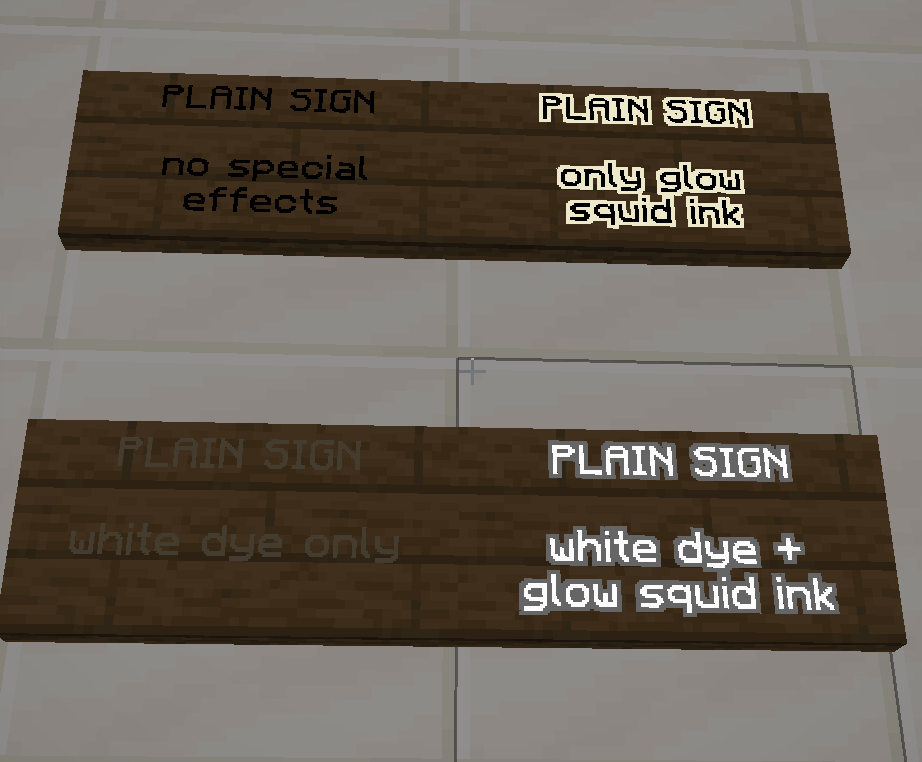
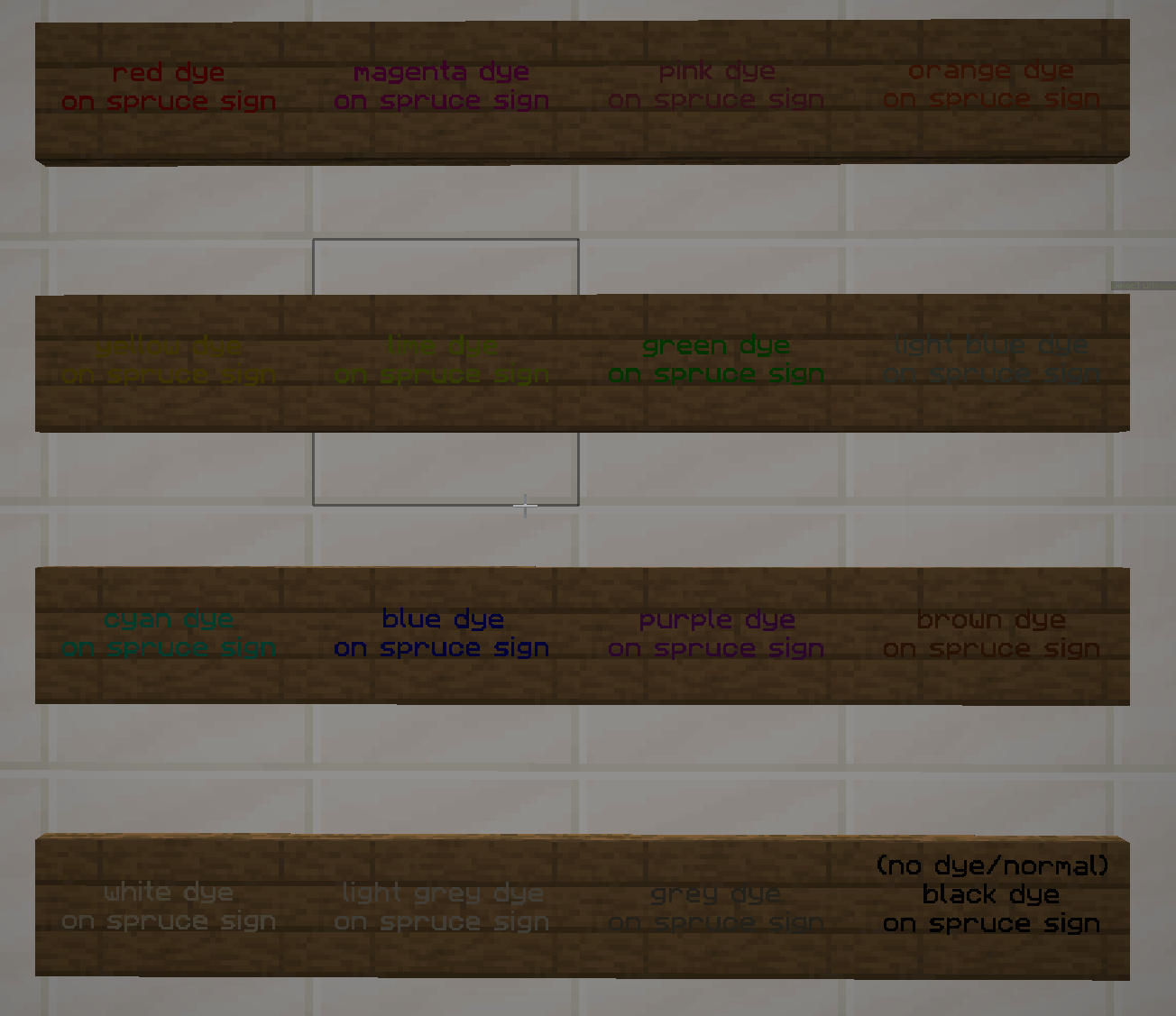
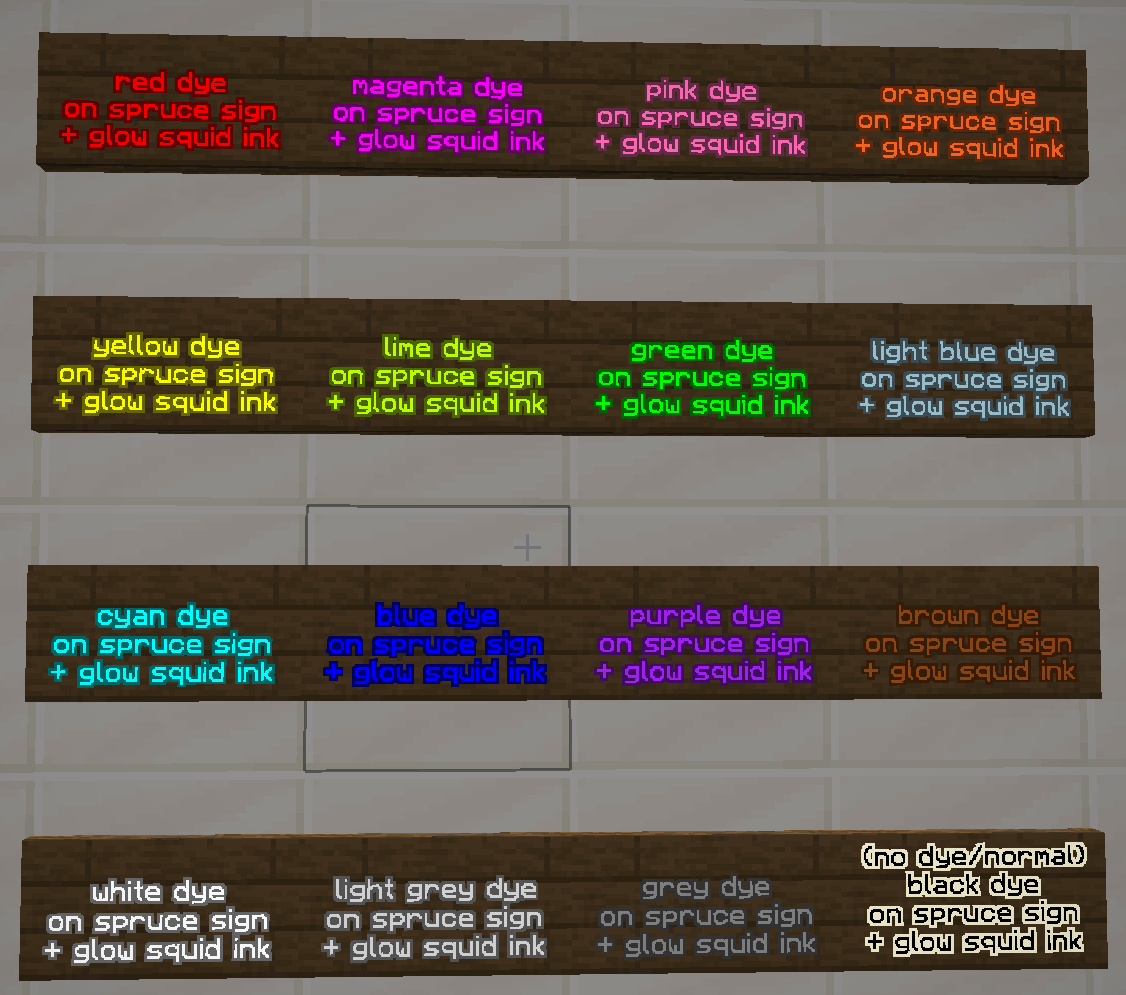
### Option 1: Dyes and Glow Squid Ink

Click on a sign with a dye color of your choice.

Click on a sign with a glow squid ink to make the sign brighter.

<p class="callout info">The benefit of this option is that you can color sign shop signs, which cannot use the second option.</p>

![](https://wiki.mineseed.org/uploads/images/gallery/2026-11/image-165.png)![](https://wiki.mineseed.org/uploads/images/gallery/2026-11/image-166.png)![](https://wiki.mineseed.org/uploads/images/gallery/2026-11/image-168.png)

### Option 2: Commands

The benefit of using commands is that you can add more than one color to a sign, and even could do more than one color on each line of a sign.

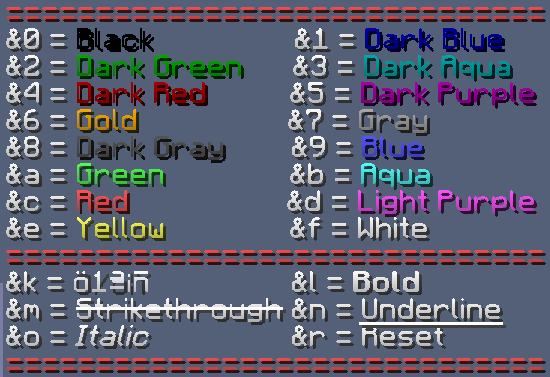
To use the command colors, do command space text (example: \[&amp;1 dark blue text\] would show dark blue text that says dark blue text)
![](https://wiki.mineseed.org/uploads/images/gallery/2026-11/external-7.png)

Any colors with \* means that it only works on bedrock versions of Minecraft (and not our java version server).

<table id="bkmrk-color-code-black-%260-"><thead><tr><th>Color</th><th>Code</th></tr></thead><tbody><tr><td>black</td><td>&amp;0</td></tr><tr><td>dark blue</td><td>&amp;1</td></tr><tr><td>dark green</td><td>&amp;2</td></tr><tr><td>dark aqua</td><td>&amp;3</td></tr><tr><td>dark red</td><td>&amp;4</td></tr><tr><td>dark purple</td><td>&amp;5</td></tr><tr><td>gold</td><td>&amp;6</td></tr><tr><td>grey</td><td>&amp;7</td></tr><tr><td>dark grey</td><td>&amp;8</td></tr><tr><td>blue</td><td>&amp;9</td></tr><tr><td>green</td><td>&amp;a</td></tr><tr><td>aqua</td><td>&amp;b</td></tr><tr><td>red</td><td>&amp;c</td></tr><tr><td>light purple</td><td>&amp;d</td></tr><tr><td>yellow</td><td>&amp;e</td></tr><tr><td>white</td><td>&amp;f</td></tr><tr><td>minecoin gold\* (this also does not display on Playstation)</td><td>&amp;g</td></tr><tr><td>quartz\*</td><td>&amp;h</td></tr><tr><td>iron\*</td><td>&amp;i</td></tr><tr><td>netherite\*</td><td>&amp;j</td></tr><tr><td>redstone\*</td><td>&amp;m</td></tr><tr><td>copper\*</td><td>&amp;n</td></tr><tr><td>gold\*</td><td>&amp;p</td></tr><tr><td>emerald\*</td><td>&amp;q</td></tr><tr><td>diamond\*</td><td>&amp;s</td></tr><tr><td>lapis\*</td><td>&amp;t</td></tr><tr><td>amethyst\*</td><td>&amp;u</td></tr></tbody></table>

### Formatting Commands

<table id="bkmrk-name-code-works-in-b"><thead><tr><th>Name</th><th>Code</th><th>Works in Bedrock?</th></tr></thead><tbody><tr><td>**bold**</td><td>&amp;l (L, but lowercase)</td><td>yes</td></tr><tr><td>strikethrough</td><td>&amp;m</td><td>no</td></tr><tr><td>underline</td><td>&amp;n</td><td>no</td></tr><tr><td>*italic*</td><td>&amp;o</td><td>yes</td></tr><tr><td>reset</td><td>&amp;r</td><td>yes</td></tr><tr><td>reset + add a color</td><td>&amp;r&amp;<span style="background-color:#FFFF00;">f (put the code of the color)</span></td><td>yes</td></tr></tbody></table>